

Most of the yards we see on Mowing Magic don’t have a mowing problem. They have a layout problem. A robot mower can keep grass at a perfect height every single day, but it can’t fix a lawn that’s chopped up by awkward beds, dead-end corners, and a patio that never quite got finished. Before you spend money on pavers, plants, or a new mower, it helps to actually see what the yard could become.
That’s the pitch behind OutdoorBrite, an AI landscape design tool that takes a single photo of your yard and returns redesigned concepts in whatever style you pick. We ran a small cabin’s front yard through the full workflow to see whether it’s a genuinely useful planning tool or just another pretty AI image generator. Here’s what it does well, where it falls short, and who should pay for it.
OutdoorBrite at a Glance
- What it is: A browser-based AI landscape design tool — upload a yard photo, answer a few questions, get photorealistic redesign concepts
- Spaces covered: Backyards, front yards, patios, gardens, side yards, and pool areas, plus focused tools for decks, pergolas, fences, fire pits, outdoor kitchens, retaining walls, and xeriscapes
- Styles: 50+ looks, including Modern, Cottage Garden, Formal, Mediterranean, Farmhouse, Desert, and Japanese
- Speed: Concepts typically come back in about a minute
- Price: From $29/month (or $23/month billed annually) — no free plan or free trial
- App: No download; it runs in any browser on phone, tablet, Mac, or PC
- Company: Operated by Revisary LLC, with payments processed through Stripe
How OutdoorBrite Works: A Step-by-Step Walkthrough
OutdoorBrite walks you through a short six-step wizard: Upload, Space, Style, Details, Generate, and Review. There’s no software to learn, no measuring, and no drag-and-drop editor to fight with before you see a result. Here’s exactly what each step looks like.
The Dashboard
After signing in, you land on a clean dashboard with a big “drop a photo of your space” area front and center. If you don’t have a photo handy, there are sample yards — a front entry, a flat open backyard, a small courtyard, and a dry desert yard — you can experiment with first.
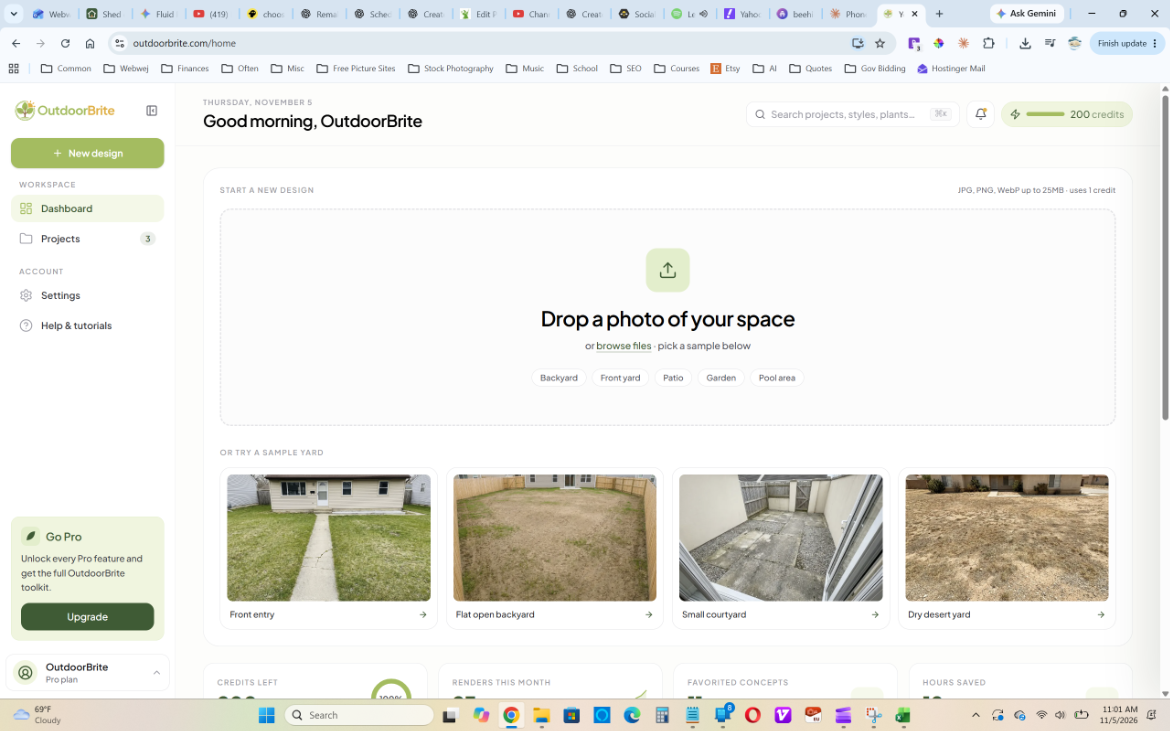
The OutdoorBrite dashboard: drop in a photo or start with a sample yard.
Scroll down and the dashboard also tracks your remaining credits, how many renders you’ve used this month, favorited concepts, and your saved projects, which can be filtered by space type (front yard, garden, and so on). It also surfaces quick photo tips, like capturing the whole space at eye level.
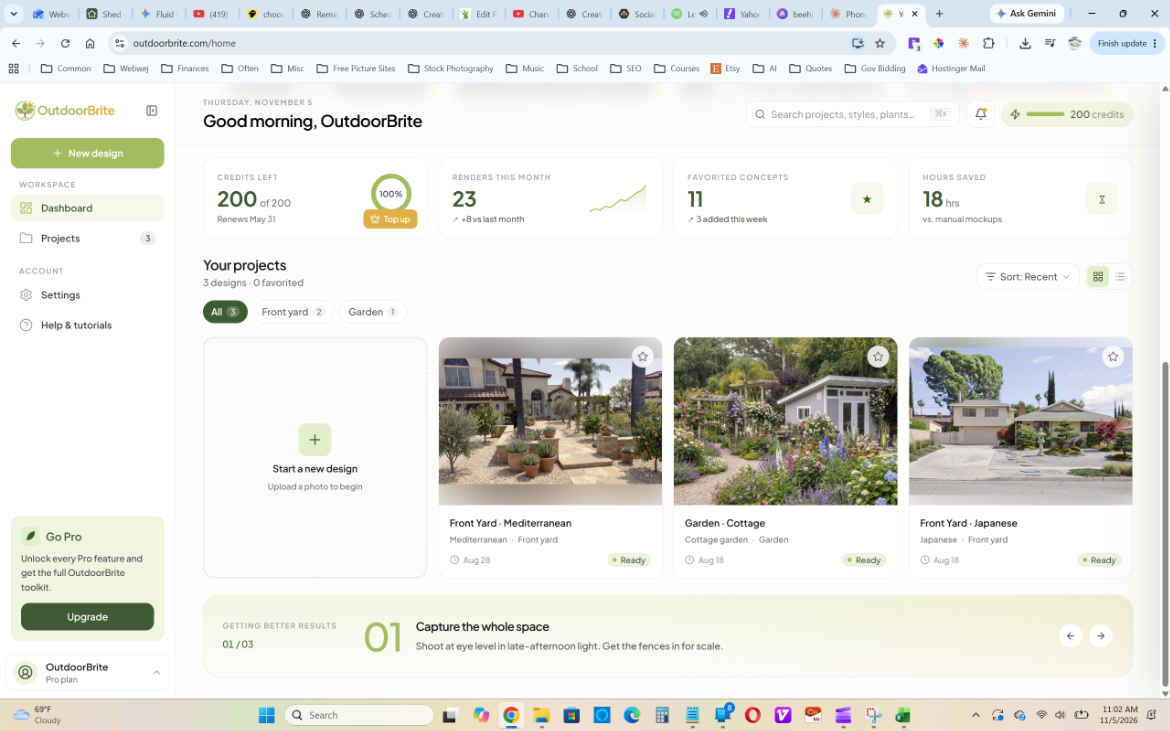
Credits, monthly renders, and saved projects all live on the dashboard.
Step 1: Upload a Photo of Your Space
Start by uploading one photo of the area you want to redesign. OutdoorBrite accepts JPG, PNG, and WebP files and recommends a clear daytime shot. For our test, we used a photo of a small log cabin with a gravel drive and a mostly natural, unfinished front yard.
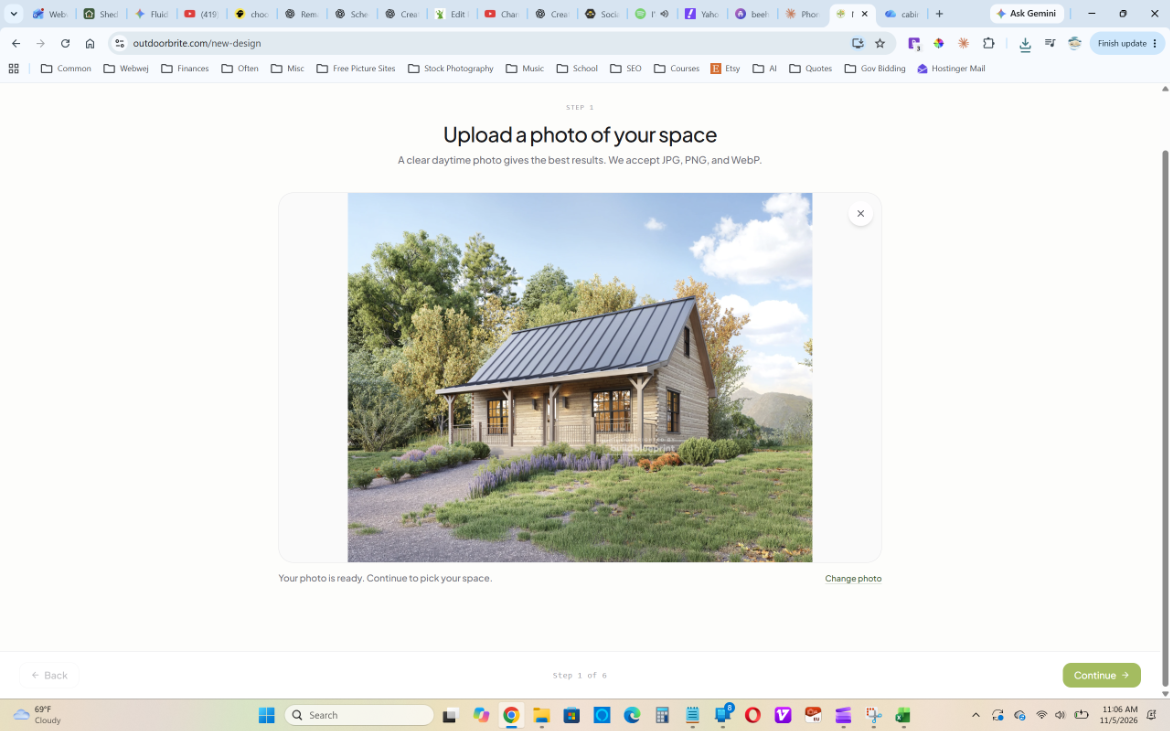
Step 1: upload a clear daytime photo of the space.
Photo tip: Shoot in even daylight from eye level, with the whole area you want redesigned in frame — fences and edges included for scale. Wide, uncluttered shots give the AI more to work with than tight, shadowy angles.
Step 2: Tell It What Kind of Space It Is
Next, you pick the type of space: backyard, front yard, patio, garden, side yard, or pool area. This matters more than it looks — OutdoorBrite uses it to tune planting, scale, and how people move through the space. We chose Front yard.
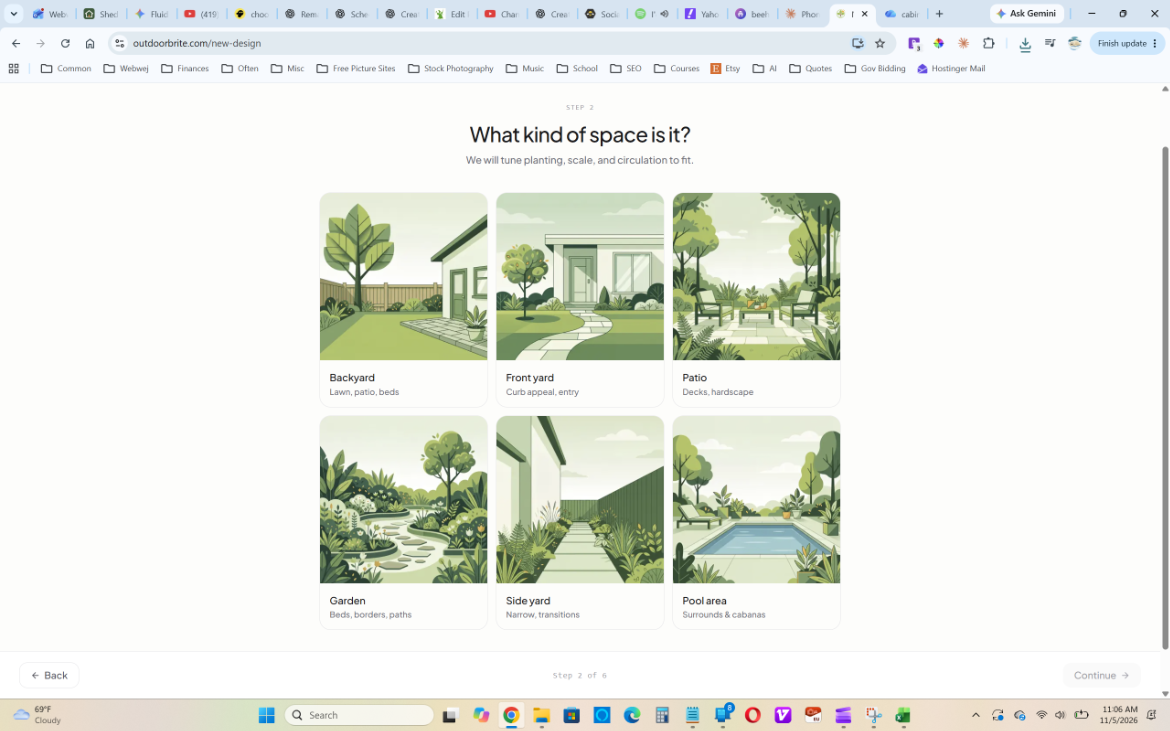
Step 2: choose the type of space so the AI can tune scale and planting.
Step 3: Pick a Style Direction
The style picker is the most fun part of the tool. Each option shows a sample photo and a one-line description — Modern (clean lines, minimal), Cottage Garden (lush and romantic), Formal (symmetry and hedges), Mediterranean (gravel, olive, terracotta), Farmhouse (rustic, timber, relaxed), Desert (low-water succulents), and more below the fold. For a rustic cabin, Farmhouse was the obvious pick.
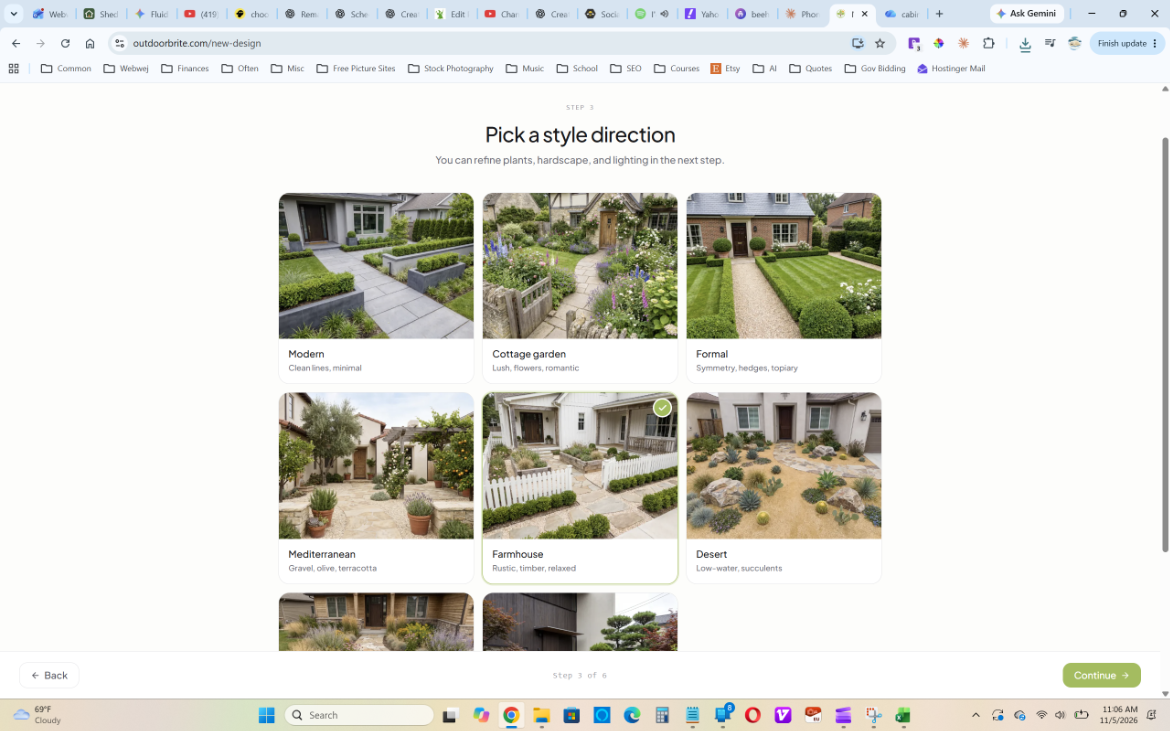
Step 3: pick a style. We went with Farmhouse to match the cabin.
Step 4: Refine the Brief
This step is what separates OutdoorBrite from a basic “restyle my photo” generator. You choose which elements to emphasize — paths and walkways, curb appeal, lawn, garden beds, driveway edge, and lighting — then set the size of the space (compact to extra large), how much upkeep you want (low-maintenance, balanced, or lush and hands-on), your budget level (low to premium), and how many concepts to generate (2, 4, or 6). More concepts use more credits.
We selected paths and walkways, curb appeal, and garden beds; set the space to medium; chose balanced upkeep; and asked for four concepts.
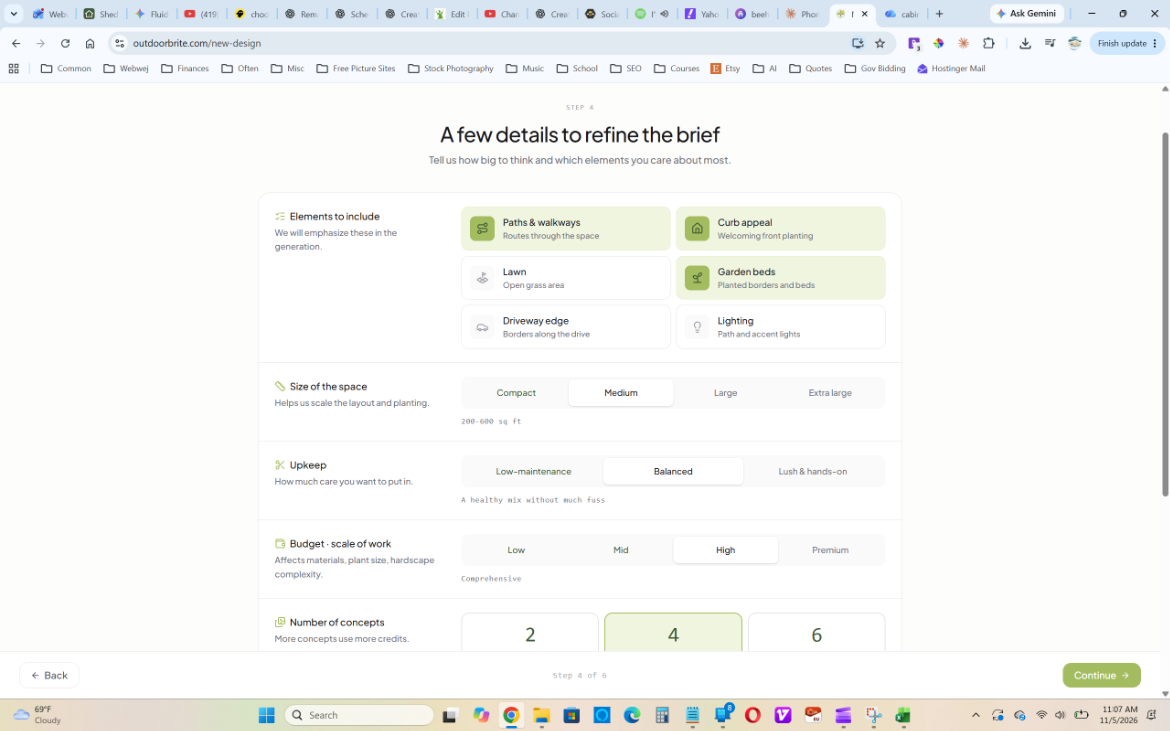
Step 4: tell OutdoorBrite which elements matter, how big to think, and how much upkeep you want.
Robot mower owners, take note: “Lawn” is an opt-in element here. We left it unchecked, and our concepts leaned heavily into gravel, stepping stones, and planting beds. If you want to keep open, mowable turf, select Lawn and choose low-maintenance upkeep.
Step 5: Generate
Hit continue and OutdoorBrite analyzes the photo and builds your concepts, with a progress bar showing how many are ready. Our four Farmhouse concepts came back in roughly a minute.
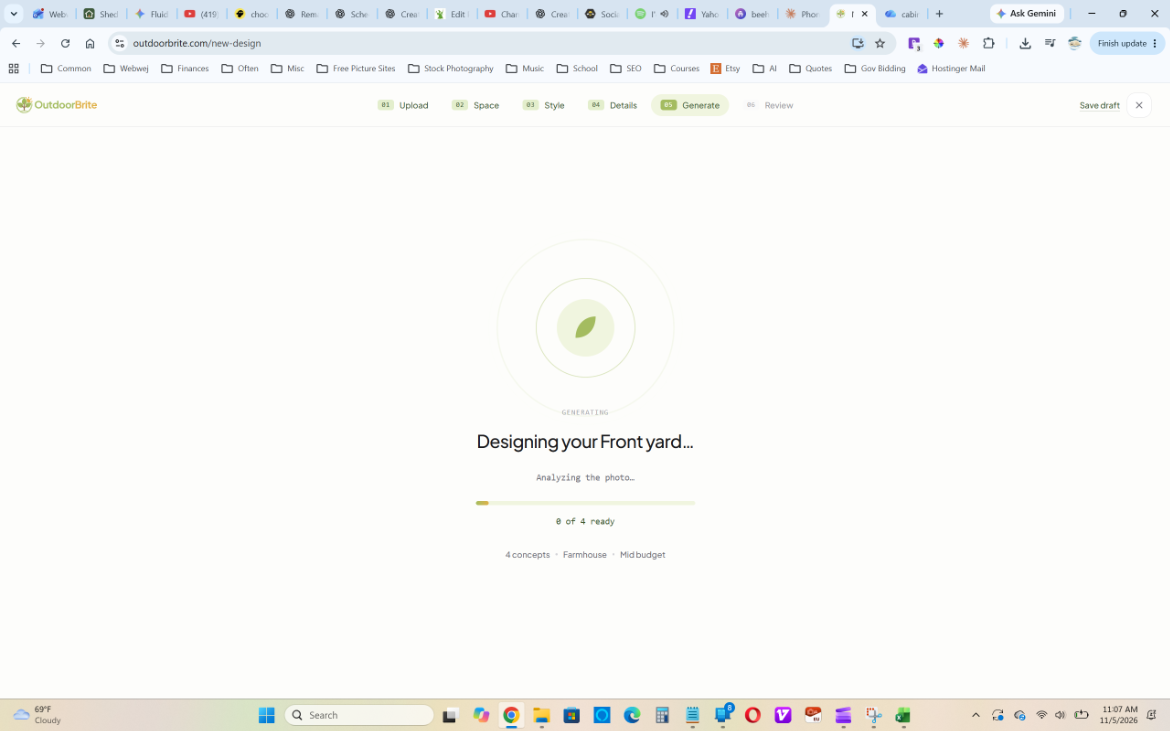
Step 5: OutdoorBrite generates the concepts — four Farmhouse designs at a mid budget in our test.
Step 6: Review Your Concepts
The results arrive side by side, labeled A through D, each with a slightly different interpretation (for example, a “Balanced” version and a “Lush” version of the same style). From here you can duplicate the project, share it, start a new design, or open a concept in the editor to refine it further.
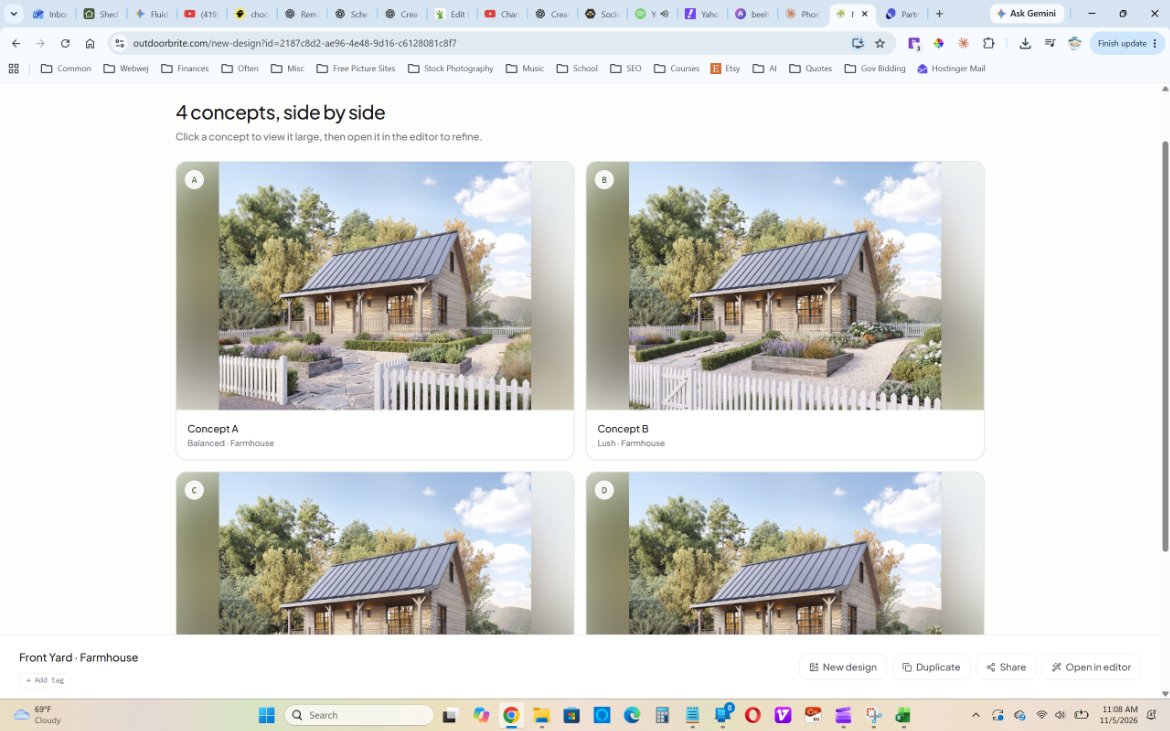
Four concepts, side by side — each a different take on the Farmhouse brief.
Click any concept to view it full size. This is where the quality really shows: the cabin, roofline, porch, and surrounding trees stayed exactly where they were, while the front yard picked up a white picket fence with a gate, timber raised beds, lavender and hydrangea plantings, boxwood hedges, and a stepping-stone path through gravel. It genuinely reads like a finished version of this property, not a stock render. An Edit with AI button and a Download button sit right in the top corner.
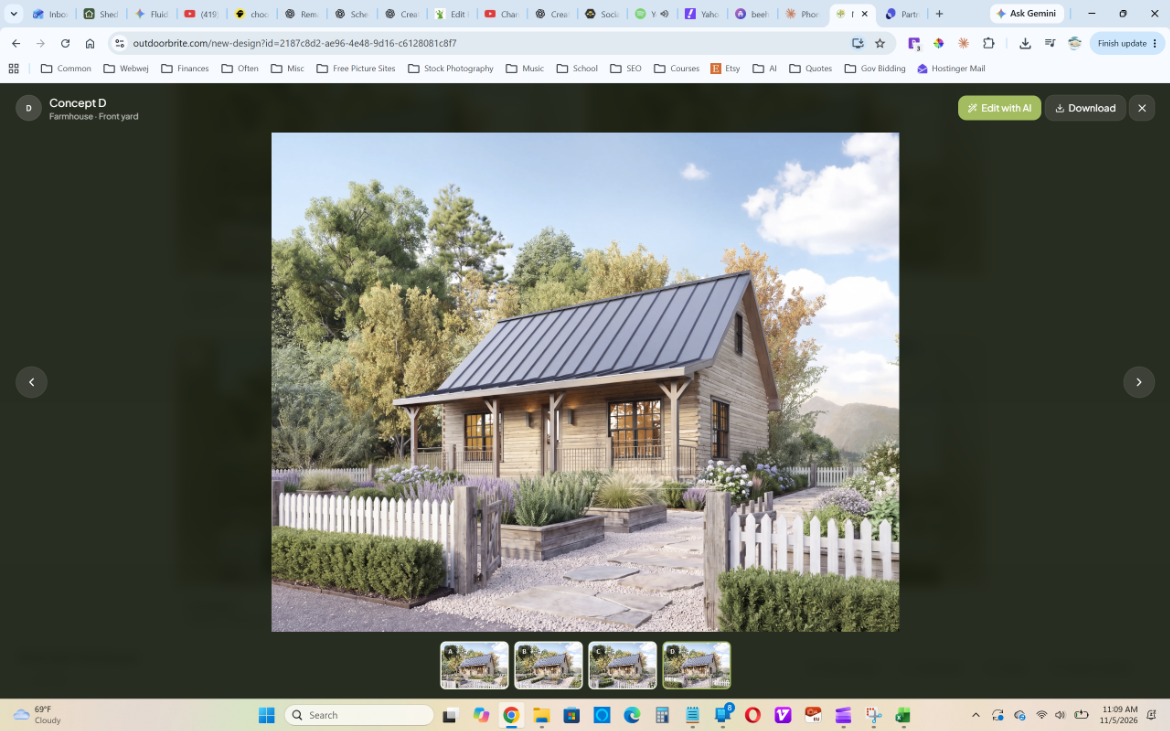
Concept D at full size, with Edit with AI and Download options.
Finally, every design is saved to your Projects. The project panel includes a draggable before-and-after slider, thumbnails of each concept, and buttons to open the editor, create a new variant, download, share, or duplicate. It also records the brief you used — style, space, budget, upkeep, and size — so you can come back later and pick up where you left off.
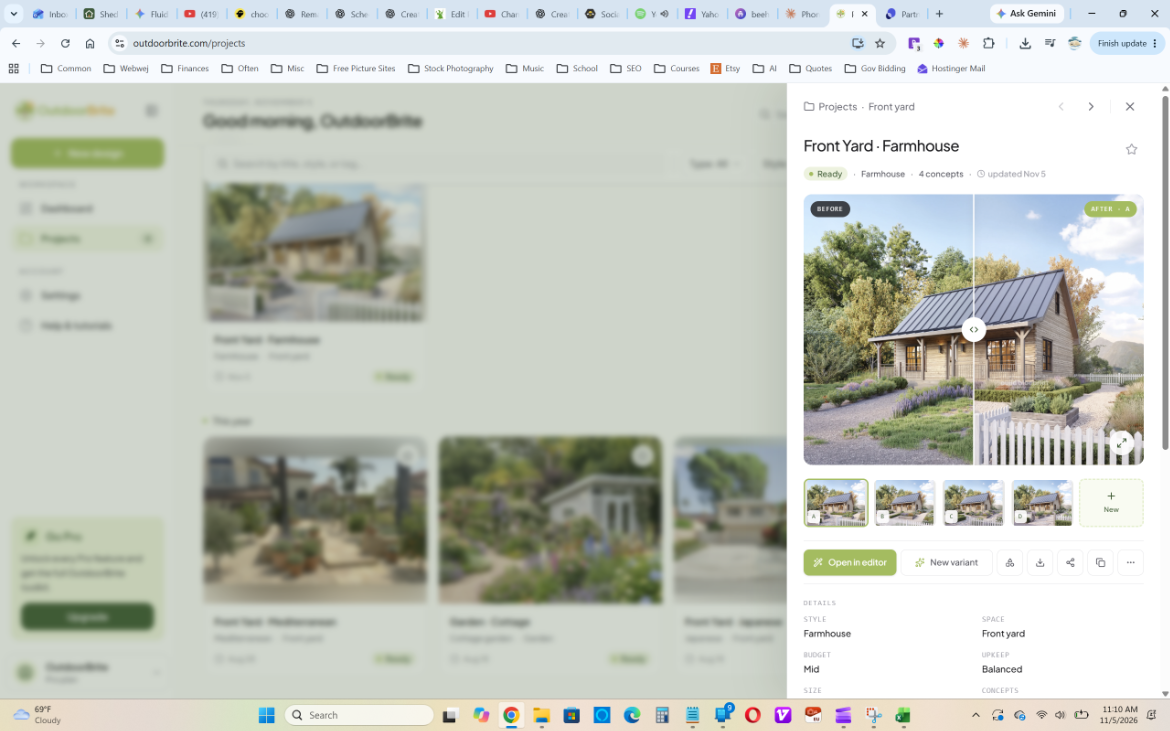
The before-and-after slider makes it easy to see exactly what changed.
Key Features Worth Knowing About
Designs Built on Your Actual Yard
This is the biggest difference between OutdoorBrite and a generic AI image generator. Because every design starts from your photo, the results keep your home, property lines, and existing structures in place. In our test, the cabin itself was untouched in every concept — only the landscape changed. That makes the concepts far more useful for real decisions.
A Real Design Brief, Not Just a Style Filter
The Step 4 brief — elements to include, size, upkeep, budget, and concept count — gives you meaningful control over the output without any design skills. Telling it you want a balanced, mid-budget yard produces noticeably different results than asking for a lush, premium one.
Region-Aware Plant Lists
Plus and Pro plans include plants picked for your region and a plant list for every design. That gives you a starting shopping list for the nursery instead of a rendering full of plants that won’t survive your winters. We’d still double-check every pick against your USDA hardiness zone and sun exposure before buying.
AI Editing and Variants
Once you have a concept you like, you can refine it with AI edits or spin up new variants instead of starting over. On Plus and above, that includes swapping plants, changing paving, adjusting the layout, and placing elements onto your photo. Just remember that each edit uses a credit.
Shareable Concepts for Contractors
Saved designs can be downloaded, shared with family, or sent to a landscaper to quote. Pro adds team collaboration, client-ready presentation exports, and view-only share links — features aimed squarely at landscaping businesses that want to show clients a pool or patio on their own property before signing a contract.
OutdoorBrite Pricing
OutdoorBrite is a paid-only product. There’s no free tier and no free trial, which is the first thing to know before you upload a photo. Monthly plans are cancel-anytime, and annual billing saves 20%.
| Plan | Monthly | Billed Annually | Redesigns / Month | Image Quality | Best For |
|---|---|---|---|---|---|
| Starter | $29/mo | $23/mo ($276/yr) | 25 | HD | One backyard project |
| Plus (most popular) | $49/mo | $39/mo ($468/yr) | 100 | 2K | Comparing styles across a whole yard |
| Pro | $149/mo | $119/mo ($1,428/yr) | 200 | 4K | Landscapers and agencies |
A Business tier for larger landscaping and design teams is available by contacting OutdoorBrite directly.
A few pricing details are easy to miss:
- Concepts and edits both cost credits. One concept is one credit, so asking for four concepts per run (as we did) uses four. On Starter’s 25 credits, that’s only about six runs a month before any edits.
- Monthly credits don’t roll over. Unused credits expire at the end of each cycle. Purchased top-up packs, however, never expire and only get used after your monthly credits run out.
- The best features start at Plus. Region-aware plants, plant lists, and plant/paving/layout editing aren’t included on Starter.
- Check commercial rights before client work. OutdoorBrite’s pricing page lists agency and commercial rights on Pro, while its FAQ says commercial usage starts at Plus. If you’re a landscaper planning to show designs to paying clients, confirm with support before choosing a plan.
For context, our roundup of the best online landscape design services covers human-designer packages that typically run several hundred to a few thousand dollars per project. A month or two of OutdoorBrite is far cheaper — but you’re getting AI concepts, not a construction-ready plan.
Pros and Cons
What We Liked
- Fast. Four concepts in about a minute, versus the one-to-three-week turnaround of most human design services.
- Respects your real property. The house, roofline, and trees stayed put — only the landscape changed.
- Guided brief. The six-step wizard asks the right questions (elements, size, upkeep, budget) without overwhelming beginners.
- Multiple concepts per run. Comparing four takes side by side is the fastest way we’ve found to settle “what do we actually want?”
- Great before-and-after view. The slider makes the transformation obvious and easy to share.
- Works on any device with no app to install.
What Could Be Better
- No free trial. You have to pay before you can judge results on your own yard.
- Concepts, not blueprints. You won’t get measurements, grading plans, or drainage solutions — a contractor still has to translate the picture into a buildable plan.
- Credits go quickly when every concept and every edit counts against your monthly allowance.
- Concepts can look similar. Within a single run, variations are sometimes subtle; for bigger differences, run a second style.
- Starter is limited. The plant lists and editing tools that make it genuinely practical are reserved for Plus and Pro.
The Robot Mower Angle: Design a Yard That’s Easy to Mow
This is where OutdoorBrite gets interesting for Mowing Magic readers. If you own (or are shopping for) a robotic mower, your landscape design directly affects how well it performs. When you fill out the Step 4 brief, select Lawn and Low-maintenance, then look at each concept through a mower’s eyes:
- Favor smooth, sweeping bed edges. Gentle curves are easier for robot mowers to trim cleanly than tight zigzags and sharp inside corners.
- Avoid narrow lawn corridors. Skinny passages between beds and fences can confuse navigation or block access between zones.
- Add mowing strips. A flush paver or concrete border along beds lets the mower run its wheels right to the edge, cutting down on string-trimmer work. (Our concrete vs. pavers guide helps with material choice.)
- Keep hardscape flush with the lawn. Patios and walkways that sit at grade are easier to cross than raised edges or step-downs.
- Think about the dock. Leave a level, accessible spot for the charging station with good GPS/RTK sky view if your mower uses satellite navigation.
Use OutdoorBrite to try a few layouts, then pick the one with the cleanest, most continuous lawn. Not sure which mower fits the yard you end up with? Our free Robot Mower Finder matches you to a model based on lawn size, slope, and terrain, and our list of the best robot lawn mowers we’ve tested covers the top picks.
OutdoorBrite vs. Human Landscape Design Services
OutdoorBrite isn’t a direct replacement for services like Yardzen, ShrubHub, or Bacqyard — it solves a different part of the problem.
- Choose OutdoorBrite if you’re still figuring out what style you want, need to visualize one project (a patio, fire pit, or new beds), or want quick concepts to share with a contractor for quotes.
- Choose a human designer if you need a scaled plan with measurements, phased installation, lighting, and grading — or if you’re planning a large, expensive renovation where mistakes are costly. Our Bacqyard review and ShrubHub vs. Yardzen vs. Bacqyard comparison break down those options.
If you’d rather compare it against other DIY tools like iScape and Gardena myGarden, see our roundup of the best landscape design apps and websites.
Honestly, the two work well together. Use OutdoorBrite to narrow down a direction cheaply, then bring your favorite concepts to a designer or installer so you’re not paying for rounds of revisions just to discover your taste. If a patio or outdoor living area is on your list, our guide to how hardscaping transforms a simple lawn pairs well with this step.
Who Should Use OutdoorBrite?
Great fit for:
- Homeowners stuck on “what should this space even look like?”
- DIYers planning a weekend or seasonal project who want to preview it first
- Couples and families who need to settle a design debate with real visuals
- Home sellers and cabin or rental owners who want to show a property’s curb-appeal potential
- Landscapers who want to mock up pools, patios, and plantings on a client’s own photos (see our guide to field service software for lawn care businesses for the rest of the tech stack)
Probably not for:
- Anyone who needs construction drawings, measurements, or drainage plans
- Budget-only shoppers who want to try before paying
- Large, complex properties that really need an on-site professional
Frequently Asked Questions
Is OutdoorBrite free?
No. OutdoorBrite has no free plan or free trial. Plans start at $29 per month, or $23 per month billed annually, and you can cancel anytime.
Is OutdoorBrite legit?
Yes. It’s a paid AI landscape design tool operated by Revisary LLC, with published pricing and payments processed through Stripe.
How long does OutdoorBrite take to generate designs?
In our test, four front yard concepts were ready in about a minute after finishing the brief.
Does OutdoorBrite have an app?
No download is needed. It runs in your web browser and works on iPhone, Android, tablets, Mac, and Windows, so you can snap and upload a photo straight from your phone.
Can I build directly from an OutdoorBrite design?
Not exactly. The designs are realistic concept images, not construction blueprints. They’re ideal for choosing a direction and communicating it to a contractor, who will still need to measure and plan the actual build.
What happens to my photos?
According to OutdoorBrite, uploaded photos are used to generate your designs, are tied to your account, and aren’t sold or shared with third parties.
The Bottom Line
OutdoorBrite does one thing very well: it turns a single photo of your yard into realistic redesign ideas in about a minute, so you can see a finished space before you spend real money on it. In our cabin test, the Farmhouse concepts kept the building perfectly intact and delivered a front yard that looked buildable, not fantastical. The lack of a free trial and credit-hungry workflow are real drawbacks, and it won’t replace a professional plan for a major renovation. But for homeowners trying to choose a direction — or landscapers who want to win jobs with visuals — it’s one of the fastest ways we’ve seen to go from “I don’t know” to “let’s build that.”
Our recommendation: skip Starter and go with the Plus plan for a month if you’re redesigning a full yard. That’s where the region-aware plant lists and editing tools make it a genuine planning tool instead of a novelty. And while you’re planning, design the lawn for low maintenance — a well-laid-out yard paired with the right robot mower means you’ll spend more time enjoying the new space and less time mowing it.



2 thoughts on “OutdoorBrite Review: Is This AI Landscape Design Tool Worth It in 2026?”